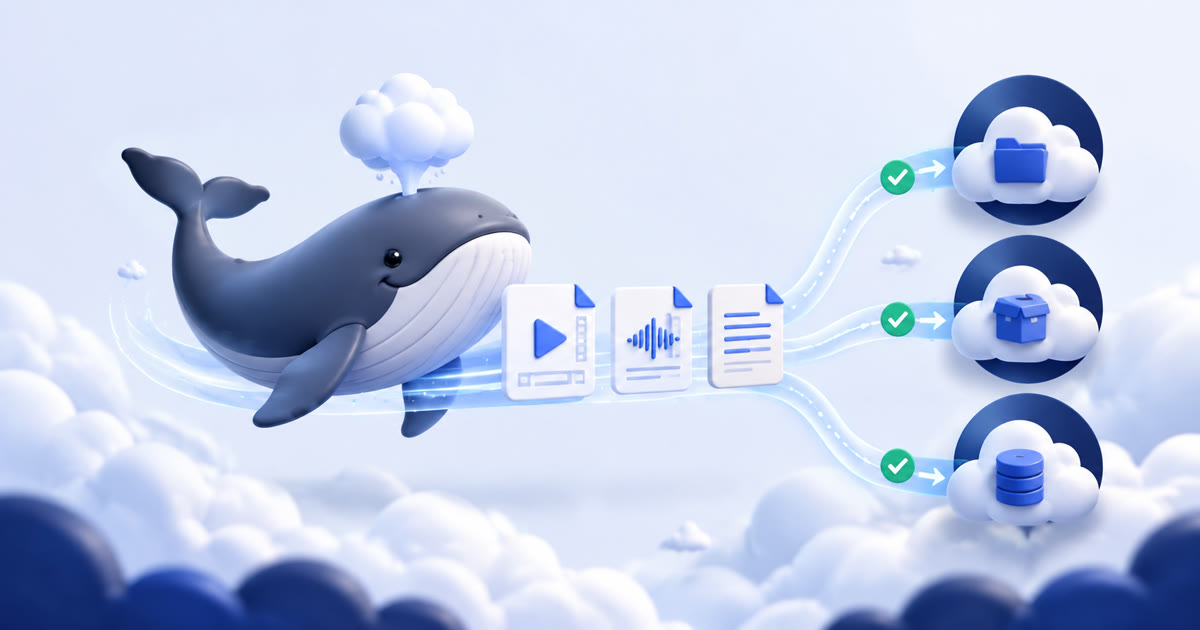
A direct path from Zoom to your Drive.
Cloud Recording Exporter uses your user-level Zoom authorization to list recordings you own and retrieve their authorized download information. The transfer worker stages each selected file temporarily, uploads it into the Nimbus Whale Exports folder in your Google Drive, verifies the destination, updates metadata, and deletes the temporary copy.
Manual Export lets you choose an existing recording from the dashboard. Pro can also react to signed Zoom recording and transcript completion webhooks and place the same verified work into the background transfer queue.
Connect Google Drive.
- Connect Zoom firstSign in to Nimbus Whale, connect the Zoom user who owns the cloud recordings, and approve the displayed user-level scopes.
- Open Google Drive setupOn the dashboard, choose Setup for Google Drive. You will be redirected to Google’s authorization screen.
- Choose your Google accountYour Nimbus Whale, Zoom, and Google email addresses do not need to match. Review and approve the limited Drive permission.
- Confirm the connectionAfter the callback returns to the dashboard, Google Drive should display Connected. The application creates or reuses its Nimbus Whale Exports folder.
- Run one manual exportSelect Google Drive, export a completed recording, and watch the queued, transferring, and completed states before checking the files in Drive.
A limited Google Drive permission.
The application requests https://www.googleapis.com/auth/drive.file with offline access. This scope lets Cloud Recording Exporter create and manage files it creates or that you explicitly open with the app. It does not grant permission to browse every unrelated file in your Google Drive.
Encrypted access and refresh tokens, the granted scope, and the app-created folder identifier are retained so scheduled transfers can continue until you disconnect the destination or delete your account.
What the Drive archive contains.
Available files depend on the Zoom host’s cloud-recording settings. An export can include MP4 video layouts, M4A audio, chat or caption files, and a VTT transcript when Zoom transcription has completed.
Nimbus Whale Exports/
├── index.json
├── README.md
└── YYYY/MM/DD/
    ├── <meetingUUID>.json
    ├── <recording-file>.mp4
    ├── <audio-file>.m4a
    └── <transcript>.vtt
The root index.json provides a cumulative meeting and file index. Each dated <meetingUUID>.json records that meeting’s relative paths, byte counts, source file types, SHA-256 checksums, and completion status. The accompanying README explains the layout in the destination itself.
Check before uploading again.
Before marking a Zoom file as exported, Nimbus Whale reads the destination metadata and verifies the corresponding Drive file still exists. If the metadata or destination file is missing, the recording becomes exportable again. Existing verified files are skipped unless you explicitly choose Re-export.
This same destination-checking workflow is used for manual exports and automatic webhook-triggered exports.
Disconnect without deleting delivered files.
Use the disconnect control on the dashboard to revoke the Google grant and remove the encrypted connection data from Nimbus Whale. You can also remove access in Google Account third-party connections. Files already delivered to your Drive remain there until you delete them.
For data handling details, read the Cloud Recording Exporter Privacy Policy. For connection problems, use the support guide or email [email protected].