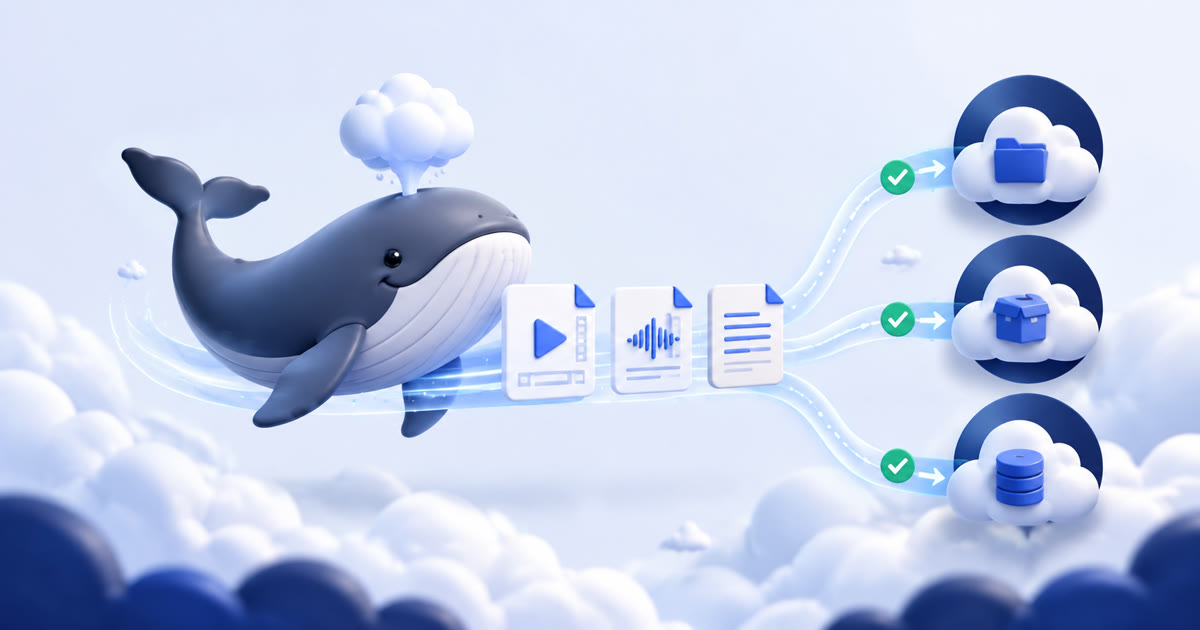
A Zoom recording archive in your AWS account.
Cloud Recording Exporter retrieves recording files authorized by the connected Zoom user, writes each file to your selected S3 bucket and prefix, verifies the upload, and updates destination-local metadata. The application uses AWS credentials only for this configured storage workflow.
Manual Export handles selected past recordings. Pro can also queue new recordings after a verified Zoom webhook arrives. Both paths use the same duplicate checks, dated object layout, retries, and completion rules.
Configure Amazon S3.
- Create or choose a bucketSelect the AWS Region and a dedicated prefix, such as
nimbus-whale/, for recording exports. - Create a dedicated IAM userDo not use the AWS root account. Create an IAM user used only by Cloud Recording Exporter.
- Attach the generated policyOpen the S3 setup dialog in the Nimbus Whale dashboard, enter the bucket and prefix, and copy the generated least-privilege policy into IAM.
- Create an access keyGenerate the access key ID and secret for that IAM user, then enter them directly in the encrypted setup form. Never send them by email.
- Run the connection testNimbus Whale writes a small temporary object, reads it back, deletes it, and uploads the destination README before marking S3 connected.
Limit IAM access to one bucket prefix.
The dashboard generates the resource ARNs from the bucket and prefix you enter. The connection and export workflow requires these actions:
s3:ListBucket, limited with a prefix conditions3:GetObjectto read metadata and verify existing exportss3:PutObjectto upload recordings, transcripts, indexes, and READMEs3:DeleteObjectto remove the temporary connection-test object
The access key and secret are encrypted at rest. AWS access keys do not expire automatically, so choose and follow an organizational rotation schedule.
Predictable S3 object keys.
<configured-prefix>/
├── index.json
├── README.md
└── YYYY/MM/DD/
    ├── <meetingUUID>.json
    ├── <recording-file>.mp4
    ├── <audio-file>.m4a
    └── <transcript>.vtt
The cumulative root index and dated per-meeting manifest contain relative object paths, Zoom source file identifiers and types, byte counts, SHA-256 checksums, and completion status. You can apply AWS lifecycle, replication, encryption, and storage-class rules to the bucket according to your own retention requirements.
Verify metadata and the object itself.
Before skipping an existing file, the exporter reads index.json and the dated meeting manifest, then checks that the referenced S3 object still exists. Missing metadata or an object deleted from S3 makes that file exportable again. Re-export remains available when you intentionally want another transfer.
A job is not shown as complete merely because Zoom reported its source files ready; cloud export completion requires successful destination upload and metadata updates.
Rotate credentials without losing the archive.
To rotate a key, create the replacement in AWS, update the S3 configuration in Nimbus Whale, complete the connection test, and then deactivate the old key. Disconnecting S3 deletes the encrypted configuration from Nimbus Whale and cancels unfinished jobs for that destination; objects already stored in your bucket remain under your control.
See the full security overview or contact [email protected] without including credentials.